Mafi

Rep: 2.7  
votes: 17
|
 Posted: Wed Jun 01, 2011 4:47 pm Post subject: 5CC updated to 1.16 (June 2011) Posted: Wed Jun 01, 2011 4:47 pm Post subject: 5CC updated to 1.16 (June 2011) |
 |
|
Hello to all fellow CC-map makers here,
the 5CC map editor got some minor additions and is now released in version 1.16 at http://www.ftf.claranet.de/
direct download possible via: http://home.claranet.de/ftf/5CC.zip
Download of the ZIP (18.4 MB) includes extended manual, updated terrain element files and separate applications for:
- WinXP/W7
- MacOS-9/X PPC
- MacOS-X i386
These are the changes:
v1.16
- WritePreferencesFile: write-access checking added.
- remembered recent loaded maps can be set to an individual limit
(up to 96 entries max.).
- import and usage of sprite-graphics file "Terrain".
- extension to format of "terrain elements files".
- corrected numerical sorting in window "editing terrain elements file".
- extended actions in "Data actions" -> "Terrain": bordering and selecting values
with a given neighbour.
- extended actions in "Data actions" -> "Elevation": bordering (even with slope)
and selecting elements with a given terrain data.
- selecting a terrain value in window "Terrain" will cause corresponding entry in
any focussed terrain edit field of window "Data actions".
- debugged LOS layer selection reference in window Tools.
- 4 additional LOS write through modes.
- generating new MMM or OVM will recalculate the new size depending on
the settings in "Preferences" (and no longer taking the former old size),
- generating MMM: width/height can be determined in "pixel per mega tile".
- generating MMM: quality "0" now faster, better graphics and no progressbar.
- generating OVM: quality "0" now faster, better graphics and no progressbar.
- added: import bridge and girder graphics from Bridges.azp.
- added: generate OVM/MMM with girder and/or tree images on.
- added: export "undamaged girder" over "BGM" or "white".
- Roof/Interior/Bridge/Girder view toggle debugged,
- BridgeInfo window enabled for LSA bridge view
(you will see always only the first entry).
- "Edit" -> "Copy" enabled for bridge and girder graphics for LSA maps.
- added hardcoded: recognizing "Conifer" as a tree.
- debugged: importing TXT map data file into already loaded map.
- loading BGM and TGA: speed slightly increased, no EOF checking anymore
for every pixel.
- added: Roof action "Adjust roof graphics to polygon shape" for both, single
action in window "Roof informations" and for all roofs in the main editing window.
- polygon definition bug fixed.
- added: picture drag and drop for the two image canvas of the window
"Roof informations".
- added: picture drag out for the windows "OVM" and "MMM".
- window OVM: "Mines" button toggle debugged.
- window MMM: menuitem "Export MMM" enabled.
- roof adjust to 8-byte format: you now can select between black filling or
white filling at the right side of the roof images.
- added: automatic detection for Groof2-error when loading a map.
- added: can be turned on /off in window "Preferences", section "Map".
- added: Roof action "Check for logical integrity of all roofs".
- changed: menu item of roof actions "Shift all vertices 1 pixel to the left" is
now relabled to: "Compensate Groof2-error", in two variations: all roofs
(makes less sense) or only the defective roofs (the user's choice).
- added: more polygon related roof actions.
- pasting roof ext./int. over BGM or white: visble-width-bug fixed.
- added: buttons "show bridge informations" and "check roofs" in
window "Map properties".
- added: roof polygon defining will now have a line going from the last defined
polygon point to the actual mouse cursor position
(only if double graphics buffering is set "on" in Preferences).
- Preferences: roof polygon pen size definition added.
- additional layer: "Interior" = see the added/generated interior background
image instead of BGM. Might be usefull when defining roofs while the additional
interior background image is loaded. Be warned: the visual effect will be strange
when defining roofs. After the roof is defined, you will see the roof, and no longer
the "interior", because the defined roof image is pasted over until you turn
"Roof > Roofs" off or "Roof > Interiors" on.
- redesign of the Help-window. Help texts concerning the window "Tools" added.
- main editing window: cursor shape will change only within the editing canvas.
- still missing: although you can edit the first blown/repaired LSA-bridge
images, such changes will not be saved back to Bridges.azp.
Cheers
Mafi
|
|
|
| Back to top |
|
| |
|
|
QM

Rep: 49.4
|
| Posted: Wed Jun 01, 2011 8:02 pm Post subject: Re: 5CC updated to 1.16 (June 2011) |
|
|
| Awesome. Thanks Mafi!
|
 |
|
| Back to top |
|
| |
platoon_michael

Rep: 56.2
votes: 25
|
| Posted: Wed Jun 01, 2011 10:37 pm Post subject: Re: 5CC updated to 1.16 (June 2011) |
|
|
| Thank-You Mafi
|
|
|
| Back to top |
|
| |
Tejszd

Rep: 133.6
votes: 19
|
| Posted: Thu Jun 02, 2011 2:15 am Post subject: Re: 5CC updated to 1.16 (June 2011) |
|
|
| Awesome, thank you Mafi!!!!
|
|
|
| Back to top |
|
| |
Manoi

Rep: 89.5
votes: 7
|
| Posted: Thu Jun 02, 2011 9:31 am Post subject: Re: 5CC updated to 1.16 (June 2011) |
|
|
| thanks Mafi. Let's hope it will be used by many mapmakers...
|
|
|
| Back to top |
|
| |
Buck_Compton

Rep: 64.6
votes: 9
|
| Posted: Thu Jun 02, 2011 12:37 pm Post subject: Re: 5CC updated to 1.16 (June 2011) |
|
|
I have been using Mafi's software for quite a while now and I like it a lot.
Cheers Remi
|
If you are short of everything but enemy, you are in the combat zone. |
|
| Back to top |
|
| |
Manoi
Rep: 89.5
votes: 7
|
| Posted: Thu Jun 02, 2011 2:19 pm Post subject: Re: 5CC updated to 1.16 (June 2011) |
|
|
| Manoi wrote (View Post):
|
|
thanks Mafi. Let's hope it will be used by many mapmakers...
|
and that we will see a lot of new maps...
|
|
|
| Back to top |
|
| |
Buck_Compton
Rep: 64.6
votes: 9
|
| Posted: Thu Jun 02, 2011 11:25 pm Post subject: Re: 5CC updated to 1.16 (June 2011) |
|
|
| Manoi wrote (View Post):
|
| Manoi wrote (View Post):
|
|
thanks Mafi. Let's hope it will be used by many mapmakers...
|
and that we will see a lot of new maps...
|
Hey Manoi,
Good to see an old rot back in the job  I understood you are working on a Stalingrad conversion? I'm looking forward to it :D I understood you are working on a Stalingrad conversion? I'm looking forward to it :D
Cheers
|
If you are short of everything but enemy, you are in the combat zone. |
|
| Back to top |
|
| |
Mafi
Rep: 2.7
votes: 17
|
| Posted: Mon Jun 13, 2011 1:53 pm Post subject: other tools updated (June 2011) |
|
|
Hello to all here,
thanks for the feedback so far! Most of my tools are now ready for MacOS-X 10.7 Lion with added Intel-apps for Macs. On the other hand the new-made PC-apps have now dropped Win98-support. So in case you need W98-support I recommend to save the older versions. The following newbies are out:
- CCVehShEdit v1.0.1
- CC2Spriter v2.95
The following tools are already Intel-Mac-ready and hopefully need no update:
- 5CC v1.16 (separate apps for i386 and PPC),
- RtBTool (UniversalBinary),
- CC2Tools (separate apps for i386 and PPC),
- BTD-Editor 2009 (UniversalBinary).
Cheers
Mafi
|
|
|
| Back to top |
|
| |
Mafi
Rep: 2.7
votes: 17
|
| Posted: Sat Feb 04, 2012 1:40 pm Post subject: 5CC updated to 1.17 (Feb. 2012) |
|
|
Hello to all,
the next update (v1.17) of 5CC is available on my site. Main thing is a performance increase for reading and writing map and TGA graphics.
Cheers
Mafi
|
|
|
| Back to top |
|
| |
Tejszd
Rep: 133.6
votes: 19
|
| Posted: Sat Feb 04, 2012 5:55 pm Post subject: Re: 5CC updated to 1.16 (June 2011) |
|
|
| Thank you Mafi!!!
|
|
|
| Back to top |
|
| |
Manoi
Rep: 89.5
votes: 7
|
| Posted: Sat Feb 04, 2012 10:58 pm Post subject: Re: 5CC updated to 1.16 (June 2011) |
|
|
| thanks!
|
|
|
| Back to top |
|
| |
Tejszd
Rep: 133.6
votes: 19
|
| Posted: Mon Feb 06, 2012 2:47 am Post subject: Re: 5CC updated to 1.16 (June 2011) |
|
|
Small bug with the Elements file name being used;
- LSA not shown on the list
- TLD/WAR selected but LSA shown on tool bar
| Description: |
|
| Filesize: |
107.42 KB |
| Viewed: |
12959 Time(s) |
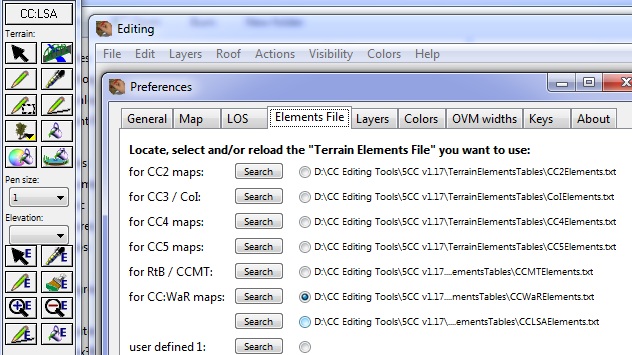
|
|
|
|
| Back to top |
|
| |
Tejszd
Rep: 133.6
votes: 19
|
| Posted: Mon Feb 06, 2012 5:47 am Post subject: Re: 5CC updated to 1.16 (June 2011) |
|
|
Hi Mafi,
Not sure if this is a training issue or request for a change but when using an elevation greyscale image can the min and or max elevation be set?
If not, could that be added to the enhancement wishlist please???
Note: love the Actions / Data Actions as I was able to set the rail line elevation and a slope away from the rail for a whole map with just a few settings and clicks.
Fill Elevation = 3
Restrict to = Rail Element
Press fill
Border Elevation = 2
Border Size = 2
Border Slope = -1
Press Border
|
|
|
| Back to top |
|
| |
Mafi
Rep: 2.7
votes: 17
|
| Posted: Mon Feb 06, 2012 12:38 pm Post subject: Re: 5CC updated to 1.16 (June 2011) |
|
|
| Tejszd wrote (View Post):
|
|
Not sure if this is a training issue or request for a change but when using an elevation greyscale image can the min and or max elevation be set?
|
Hi Tejszd,
regarding Preferences / Elements-File Title in "Tools":
thanks for the bug report. I will look at the code concerning the prefs. Perhaps you can manage it by yourself by CTRL-clicking on the left text in the window "Prefrences". Perhaps old Pref settings imported from v1.16?
Okay, next is "Greyscale image for generatingentire height":
please correct me if I 'm wrong, but as far as I do use it:
- generate a greyscale image via Photoshop, 256 shades of grey are used.
- low level "heights" are hardly to differentiate, because they are all looking "black".
- so I'm going to "spread" the grey colors I'm using. More contrast, more light grey and so on.
- Thereforethe result is a greyscale image with values indeed ranging from "0" to "255".
- Certainly I do need solely height values for example of 12 meters to 32 meters (just as an axample).
- So I'm going to import the greyscale image I have painted to change all heights.
- Now the map heights are also "0" to "255".
- Now use the "Data actions" --> "Elevation".
- Shrink down the range: in my example the range is from "12 to "32", so actuallly 21 steps are used (or is one step half a meter?).
- Therefore you need the following elevation calculation: "Multiply" by "0.1" for entire map.
- Then you will have elevations between "0" and "25".
- Now use the next "Data action" --> "Elevation": elevate all value by 12 ("add" 12 to entire map).
- Then you wil have the range between "12" and "37".
- If "37"is really to high, then do the next action: multiply entire elevations by "0.82" (= 30 / 37),
- and your range will be "10" to "30".
- Then the next action: add "2" and the result will be what you are looking for: "12 to "32".
But it might be usefull to add your suggestion to set "Minimum" and "Maximum" while importing the greyscale, too.
Cheers
Mafi
|
|
|
| Back to top |
|
| |
platoon_michael
Rep: 56.2
votes: 25
|
| Posted: Mon Feb 06, 2012 9:16 pm Post subject: Re: 5CC updated to 1.16 (June 2011) |
|
|
Wow,
Thank-you Mafi
|
|
|
| Back to top |
|
| |
Mafi
Rep: 2.7
votes: 17
|
| Posted: Tue Feb 07, 2012 5:56 pm Post subject: 5CC updated to 1.17f1 (Feb. 7th, 2012) |
|
|
| Tejszd wrote (View Post):
|
Not sure if this is a training issue or request for a change but when using an elevation greyscale image can the min and or max elevation be set?
If not, could that be added to the enhancement wishlist please???
|
Hello Tejszd, hello to all other 5CC-users!
I have uploaded a new version, 1.17f1:
- debugged the "Prefernces", and
- added a new data action "Elevation range":
go there after loading the greyscale. Enter the lowest and highest elevation in the first row of your actual "reference elevation range", for example the current lowest and highest values. In the row below enter the new "elevation minimum" and the new "elevation maximum", then press the button "Calculate". You will be asked if you want to change the entire map. Press "Yes", and you will have a new elevation range. Values to enter must be positive integer values (no decimals, no negative values, lower value must be less than higher value). No checking for input integrity. Undo is possible via CTRL-Z / CMD-Z from within the main editor window only. I hope this helps. It was easir to implement it this way rather than integrating it into the greyscale import dialog and it gives you the opportunity to use it at any time.
Cheers
Mafi
|
|
|
| Back to top |
|
| |
southern_land

Rep: 155.2
votes: 14
|
| Posted: Tue Feb 07, 2012 7:31 pm Post subject: Re: 5CC updated to 1.16 (June 2011) |
|
|
| Wow that is so cool... and fast!
|
|
|
| Back to top |
|
| |
Tejszd
Rep: 133.6
votes: 19
|
| Posted: Wed Feb 08, 2012 2:38 am Post subject: Re: 5CC updated to 1.16 (June 2011) |
|
|
Wow is right, THANK YOU !!!
Edit:
- LSA still shown for TLD/WAR elements
- new elevation range works great
|
|
|
| Back to top |
|
| |
Mafi
Rep: 2.7
votes: 17
|
| Posted: Wed Feb 08, 2012 5:30 am Post subject: Re: 5CC updated to 1.16 (June 2011) |
|
|
| Tejszd wrote (View Post):
|
- LSA still shown for TLD/WAR elements
|
Hi Tejszd,
Please trash the preferences file "5CC.ini" file if nothing helps. Or easier: perform CTRL-click on the text "for CCWaR maps:" and "for CCLSA maps:" to change these entries via a special little window with dark green background.
Cheers
Mafi
|
|
|
| Back to top |
|
| |











